Saving a YouTube video for offline use takes about a minute when you use the right method. This guide covers the whole flow: the download itself, choosing a resolution intelligently, platform-specific steps for phones, and the honest answer on what is and is not allowed.
The method (works everywhere)
- Copy the video URL, from the browser address bar, or Share → Copy link in the app. A clean link contains watch?v=.
- Open the YouTube video downloader in any browser, desktop or mobile, nothing to install.
- Paste the link. Within seconds you will see the video's title, duration and every available quality with its real file size.
- Pick an MP4 resolution and press Download. A live progress bar shows fetching, converting and delivery; the file saves automatically.
The output is a standard MP4 (H.264 + AAC). The most compatible video format there is. It plays on every phone, TV, console and editing app without any extra codecs.
Which resolution should you download?
| Resolution | When to pick it | Rough size per 10 min |
|---|---|---|
| 1080p | TVs, monitors, editing footage | 150-300 MB |
| 720p | Phones and tablets, the sweet spot | 70-150 MB |
| 480p | Messaging apps, tight storage | 40-80 MB |
| 360p and below | When only the content matters | 20-40 MB |
Two practical notes. First, you cannot download quality that is not there. A video uploaded at 720p has no 1080p option. Second, on a phone screen 720p and 1080p are close to indistinguishable; picking 720p halves the size and doubles the reliability of big downloads.
On iPhone
Use Safari. Paste the link, download, and the MP4 lands in Files → Downloads. To move it into your Photos library: long-press the file → Share → Save Video. If the download seems to vanish, tap Safari's download arrow (top right), iOS downloads without fanfare.
On Android
Any browser works. The MP4 saves to Downloads and appears in your gallery on most phones automatically. If not, any file manager can move it to Movies/DCIM, or just play it from Downloads directly.
On Windows and Mac
Nothing special to know, paste, pick, download to your Downloads folder. Desktop is the best place for long 1080p downloads: steadier connection, no battery concerns, and the smart cache makes repeat lookups instant if you are grabbing several videos.
Only want the audio? Or something more specific?
- Audio only: the YouTube to MP3 converter gives you a file a tenth of the size, ideal for music, podcasts and lectures.
- Shorts: the Shorts downloader saves vertical videos without watermark.
- Whole playlists: the playlist downloader processes several videos in a row.
- Thumbnails: the thumbnail downloader grabs the HD cover image.
Shorts work the same way, with one difference
A Short is a normal video as far as downloading goes: copy the link, paste it, pick a quality. The one difference is the shape. Shorts are vertical, usually 1080x1920, and the file keeps that framing, so it will look correct on a phone and letterboxed on a TV. Nothing is cropped.
If what you actually want is the sound rather than the video, convert straight to MP3 instead of saving the video and extracting the audio afterwards. It skips a re-encode and avoids downloading video data you are going to throw away. There is a dedicated Shorts downloader if you want a page tuned for it.
Downloading a whole playlist
Paste the playlist URL rather than a single video link and you get the full list, with each video downloadable in turn, as MP3 or MP4. The playlist downloader is the page for this.
Matching the format to the playlist saves a lot of time. Albums, mixes and lecture series almost always want MP3. Tutorial series and anything where you need to see the screen want MP4. For anything beyond a handful of videos, do it on Wi-Fi and on a desktop: steadier connection, no battery drain, and you can leave it running.
A tip for big batches: if you are downloading many videos to watch on a phone, choose 720p rather than 1080p. On a small screen the two are visually identical, but the 720p files are roughly half the data and each one finishes faster.
A few things do not work, and it is better to know why than to keep retrying. YouTube Mixes, the ones with URLs starting list=RD, are generated per viewer in real time, so there is no fixed list to read. Private playlists need a login and we never ask for yours, though unlisted playlists are fine. Deleted or private videos inside a playlist still show in the count but cannot be fetched, so those fail individually while the rest carry on. And the list shows the first 100 entries, which covers essentially every real playlist.
Just the thumbnail
Sometimes the image is the thing you want. The thumbnail downloader pulls every size YouTube holds for a video, and it is worth understanding what those sizes are, because they are fixed and you cannot ask for anything else.
| Name | Resolution | Always exists? | Best for |
|---|---|---|---|
| Max HD (maxresdefault) | 1280x720 | No | Design work, printing, close inspection |
| SD (sddefault) | 640x480 | Usually | Blog posts, presentations |
| HQ (hqdefault) | 480x360 | Yes | Embeds, previews |
| Medium (mqdefault) | 320x180 | Yes | Lists and cards |
| Small (default) | 120x90 | Yes | Small interface elements |
The Max HD version is the one that sometimes goes missing, and there is a reason for it. YouTube only generates the 1280x720 image when the uploader supplied high-resolution artwork, or the video is recent and HD. Older uploads, low-resolution videos and auto-generated thumbnails never got one, so the largest size on the list is the largest that exists. No tool can produce a bigger version of an image that was never made. Anything advertising AI-enhanced 4K thumbnails is upscaling, with every artefact that implies.
When the download will not work
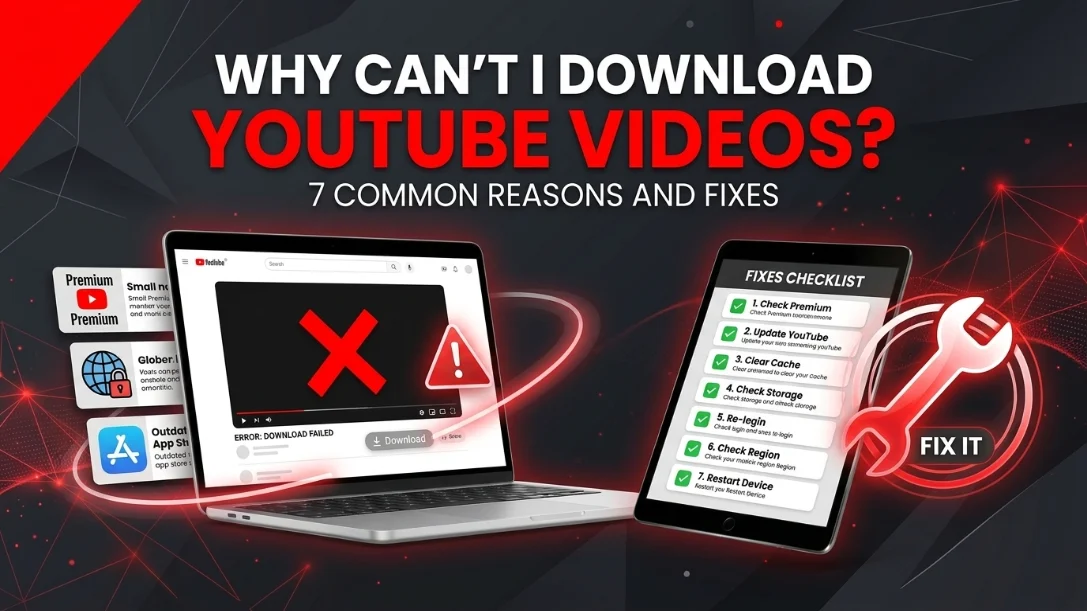
Private, age-restricted and region-locked videos cannot be fetched by any web downloader, and still-running livestreams are not files yet. Very long 1080p videos can time out, drop to 720p and they usually sail through. The complete troubleshooting list is in why can't I download YouTube videos, and if your finished download plays silently, the no-sound fix guide has you covered.
Is downloading YouTube videos allowed?
It depends on the content. Your own uploads, Creative Commons videos and public domain material are clearly fine to download. Copyrighted content is more complicated, personal offline viewing sits in a legal grey zone that varies by country and can breach YouTube's Terms of Service, while re-uploading or commercial use without a licence is clearly infringement. The full breakdown is in our legality explainer. Short version: download what is yours, what is freely licensed, or what you have permission for.