Cut part of a YouTube video and download just that clip
Only need one goal from a match, a single step from a long tutorial, a quote from an interview or 20 seconds of a song for a ringtone? This YouTube video cutter downloads just the section you pick instead of the whole video. Paste a link, drag the two handles to mark where the clip starts and ends, then save it as an MP4 video or as MP3 audio. It is free, needs no signup and runs in your browser.
The trimmer, up close
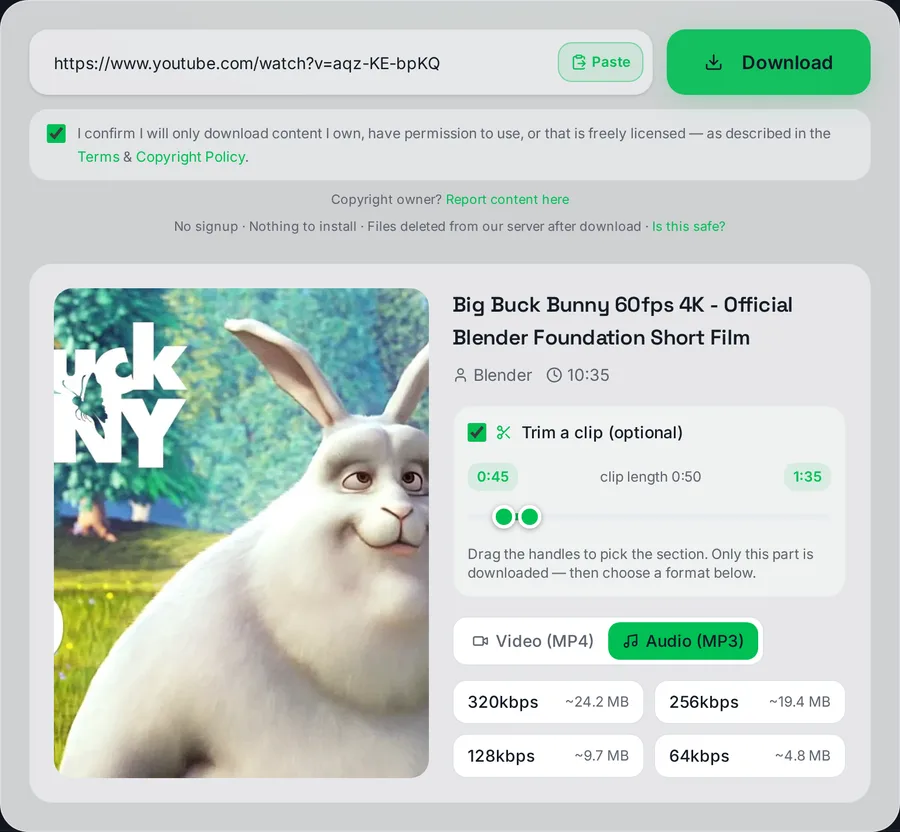
The trimmer with a 50-second section selected. Only the part between the two handles is downloaded, which is why a clip arrives much faster than the full video.
On this page the trimmer is switched on before you paste anything, so it opens as soon as the video has been read. The two labels above the slider show where the clip starts and ends, and the figure between them is the clip length, which updates as you drag.
How precise is the cut?
The handles move in one-second steps, and the cut is made at exactly those points rather than at the nearest keyframe. Plenty of quick trimming tools snap to keyframes, which is why their clips often start a couple of seconds early. Here the clip begins on the second you chose.
Video clips come out as H.264 MP4 at the resolutions the upload offers, up to 1080p, so they play on phones, TVs and in any editor. If a video has no known length, which occasionally happens with live recordings, the trimmer cannot be shown and the page tells you so.
What people cut
- A highlight: one goal, one trick or one funny moment from a long video.
- A single step from a long tutorial, to keep next to your own notes.
- A quote from a talk or an interview, for a presentation.
- A hook from a song, saved as MP3 for a ringtone.
- Your own footage: the one section of a past upload you want to reuse.
A clip of someone else's video is still their work, so cut and reuse only what you have the right to.
Cutting the audio: ringtones and song clips as MP3
Switch to the Audio (MP3) tab and the same trimmer becomes a YouTube to MP3 cutter. The most common use is a ringtone: grab a 20-30 second hook, download it as an MP3 and set it as your ringtone or notification sound. On Android you can pick the file straight from the sound settings; on iPhone, import the clip into GarageBand to turn it into a ringtone.
Use 320kbps for music and 128kbps for spoken clips. YouTube stores audio at roughly 128-160kbps, so 320kbps keeps everything the source has, and our 320kbps guide explains what that does and does not buy you. The complete YouTube to MP3 guide walks through ringtones on iPhone and Android step by step.
Cutting here vs downloading the whole video
| What changes | Cut with this tool | Download, then edit |
|---|
| What gets downloaded | Only the selected section | The entire video |
| Software needed | A browser | A video editor |
| Where the clip starts | On the second you set | Depends on the editor; quick lossless trims snap to the nearest keyframe |
| Output | MP4 up to 1080p, or MP3 | Whatever the editor exports |
Downloading the whole video still makes sense when you want several clips from it, or plan to edit it heavily anyway. For one clip, cutting first is quicker.
Works on phones, tablets and computers
On iPhone, use Safari and the clip saves to the Downloads folder in the Files app. On Android, it lands in Downloads and shows up in your gallery or music app. On a computer it goes to your usual Downloads folder. The handles drag with a finger as easily as with a mouse.
Please cut and download only what you have the right to use: your own uploads, licensed content or Creative Commons material. This educational tool is not affiliated with YouTube; see our legality guide.